Zapier set-up |
What do you want to do? |
Note: You will only have access to
MindManager's Zapier feature if you are using MindManager Enterprise.
What's a Zap?
Zaps are automations that follow If/then rules. Each zap
consists of one trigger
("if this happens") and one action
("then do this") that work via a connection between
two applications, the trigger
app (the application that Zaps are sent
from) and the action
app (the application that Zaps are sent
to).
To use Zapier, you'll need to:
 Read
Hint Read
Hint
|
See
also:
|
Create
a MindManager Account
To use Zapier, you'll first need to create a MindManager
account. This account will be used to allow Zapier access to your maps.
 Read Note
Do one
of the following:
On the Tasks
tab, in the Send Tasks To
group, click the Zapier
drop down then click Set
Up Account. |
Or |
On the Advanced
tab, in the Zapier
group, click the Zapier
drop down then click Set
Up Account. |
Read Hint
In the Set Up Account dialog, enter:
Or sign in using Google+.
Click Sign
In to create your Zapier account.
Once your MindManager account is set up,
you will see a confirmation message.
Create a Zapier account
Once you've created your MindManager account, you need create
an account in Zapier.
Do one
of the following:
In the MindManager
Account Confirmation dialog box, click Launch
to open the Zapier website
in your designated browser. |
Or |
Navigate directly
to the Zapier website in
your preferred browser. |
Follow the instructions on the Zapier
website to create an account; if you already have an account,
log into it.
With both accounts created, you can now create Zaps.
Create
a Zap
Setting up Zapier is done on the Zapier
website in a guided, step-by-step process. Because there are hundreds
of applications you can link to using Zapier, creating a Zap will vary
depending upon the applications you wish to connect.
Let's look at a test case: setting up a Zap between MindManager and
Trello.
Note: Zapier
is not currently localized. To provide accurate on-screen guidance, text
and screen captures that reference Zapier on-screen prompts are in English.
In Zapier navigation bar, click Make
a Zap. The Zapier interface asks you to choose a trigger and
action:

|
First:
Choose
a Trigger app: When creating a Zap that
allows you to send topic information from MindManager to another
app, the trigger app is always Mindjet MindManager.
Choose
an Action app: choose the app you where
you want to send MindManager map topic data, for example,
Trello.
|
Then:
Choose
a trigger: While some Zapier-enabled applications allow
you to choose from a variety of trigger activities, when you
select Mindjet MindManager, you will be offered one selection,
Zap topics.
Choose an action:
You choose the action you want to occur. The potential
action will vary, depending upon the application you are linking
to. For example, if the action app is:
Gmail,
you can choose "send email" (create and send
an email message that contains the map topics info) or
"create draft" (create an email message with
the map topic info, but do not send it). Evernote,
you have the option of "create note," "create
tag," "create reminder," or "append
to note." Slack,
you can select "send direct message" or "send
channel message." |
Since we're linking to Trello in the
example above, we'll choose "Create Board." This
means that the topic information Zapped to Trello will be
used to create a new Trello Board. |
Connect accounts:

|
Select
a Mindjet MindManager account
Select the
Action application account
In this case, we'll be linking to
a Trello account.
Test
this account
|
Read Hint
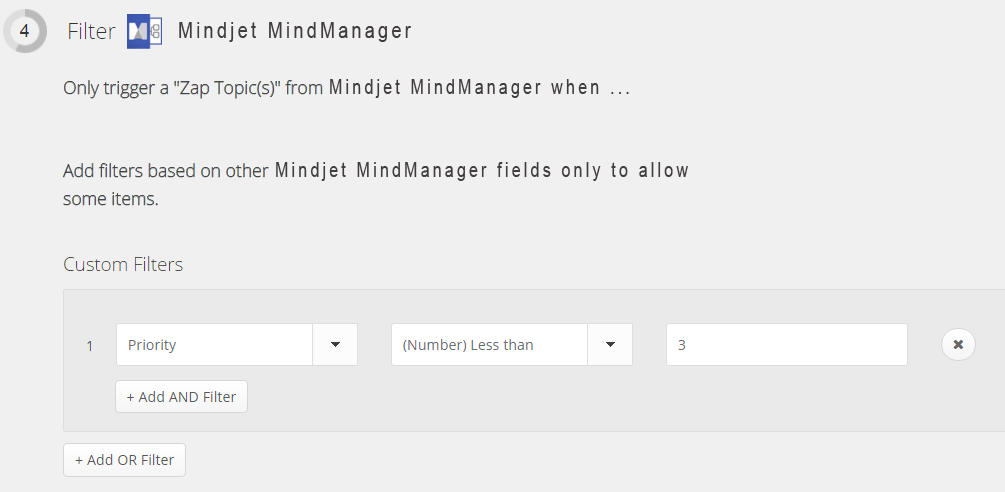
Now, you need to set up your Trigger Filters.
Zapier lets you set conditions so that the Zap will only activate
if those conditions are met.
|
First:
In the Filter section, click +
Add Custom Filter. The Add
a Filter section opens with three entry fields:
Field
lets you select from a list of MindManager topic information,
including Topic Text, Due Date, Tags, Priority, Resources,
Notes, Hyperlink, Subtopics Text, Milestone, Progress, Start
Date, and others. Choose the topic information that you want
to use as the filter. Condition
allows you to set the parameters of the content entered in
Value. For example,
if value contains a date, you can set the condition to (Date/Time)
Greater Than, (Date/Time) Less Than, or (Date/Time) Equals. Value
lets you type in the specific value the field must meet for
the topic information to be Zappable.
This could be a text string, a date, or a numeric.
Select the criteria you wish to use. Once you create a filter,
every topic you wish
to send using this Zap must meet the criteria defined in the filter,
or you will get a Zapier error message.
In the example above, a Zap will be sent
from MindManager to Trello to create a new card only if
the selected topic has a priority marker of 1 or 2. Topics with
a lower priority can not be Zapped. |
Read Hint
Customize the Action by matching up the
MindManager topic information to target fields in the Action app.
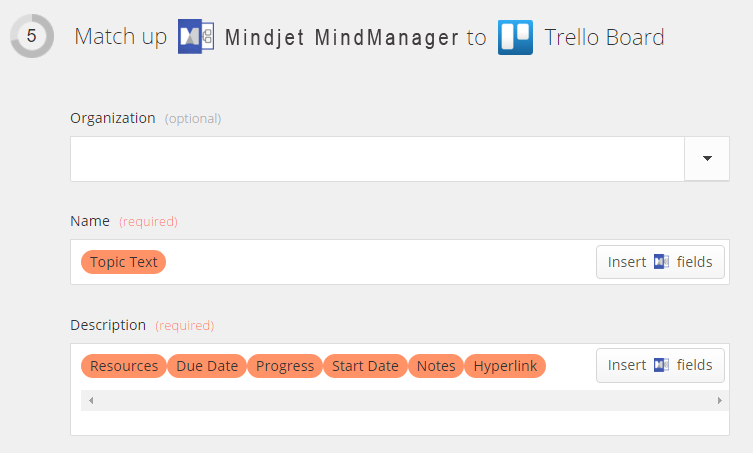
For the Trello Board Zap above, the
Organization name is skipped; Topic Text is used for the name
of the new board, and the board's description includes the
Resources included in the topic, the topic's Start and Due
dates, any Notes or Links, and the current Progress of the
topic. |
When you send a Zap, MindManager
information is sent and used by the Action application. How
the information is employed varies depending upon the application—and the instructions you
give Zapier in this step. Each application will offer a specific
selection of information fields, some required, and others
optional.
Some fields must have information
typed into them. Others include a drop down
menu of MindManager topic data. Click the Insert Fields button
 to access
the options and select the one(s)
you want to associate with the field: to access
the options and select the one(s)
you want to associate with the field:
For
example, when creating a Zap that will build a Trello board
from a MindManager map topic, you are offered three fields:
Note: Once
you match the MindManager map data to the Action applications
fields, your map topic must
include all the designated types of data, or
you will get a Zapier error message. In the Trello
example at right, if you do not have a "Due Date"
set for the topic, you will receive an error message when
you try to Zap that topic. |
After customizing the Action, test the
Zap.

Click the Test button.

|
Note: You may need to return to
your MindManager map and Zap a topic to successfully complete
this test.
|
Name the Zap
and turn it on.

|
Many
people set up more than one Zap.
For example, you may create
a Zap to convert MindManager topic data into a Trello
card, and another to send reminder emails via Gmail. You may even have more than
one type of Zap for the same application: one to create
a Trello card, one to create a Trello board, and one to
create a Trello list
To keep track of your different
Zaps be sure to give each Zap a distinctive name.
We made a Zap that used MindManager
topic data to create a new board in Trello so a good name
might be "Trello Board."
Click Turn Zap on
to activate it. |
Note: Data sent
using Zapier is not synced to the map. If you make changes on your
map, it will not be updated in the Action app. You must re-send the Zap
to update the information.
Zapier Dashboard
Once you have successfully set up your Zap, you will see your it listed
on your Zapier dashboard, under the name you
gave it. You can then start Zapping
from MindManager topics.
If you have set up more than one Zap, use the dashboard to manage them

