Send map data
using Zapier |
What do you want to do? |
Note: You will only have access to
MindManager's Zapier feature if you are using MindManager Enterprise.
Once you have set up Zapier,
you can start using your Zap to send topic data from MindManager
to the Zap-enabled application(s) in your Zapier account.
 Read
Hint Read
Hint
Note:
Data sent using Zapier is not synced to the map. If you
make changes on your map, it will not be updated in the Action
app. You must re-send the Zap to update the information. |
See
also:
|
Send
selected Topics to Zapier
To send a topic using Zapier,
you need to have set
up Zapier and created
a Zap.
Send a Zap
Note: Zapier
is not currently localized. To provide accurate on-screen guidance, text
and screen captures that reference Zapier on-screen prompts are in English.
Select a topic. Before Zapping, check your
topic to make sure that it:
Meets
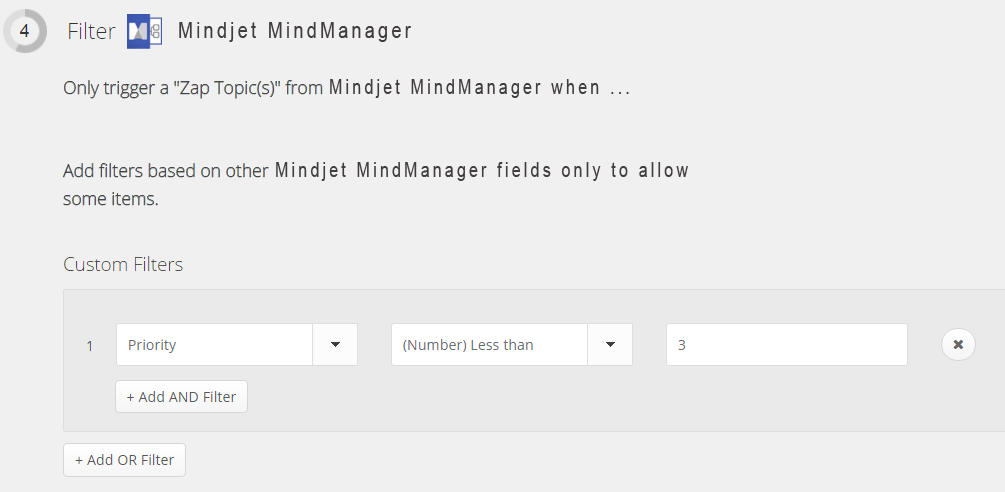
the criteria of the filter you set up (if you set up one).
For example, for a Zap with a filter that states only
run the Zap if the topic has a priority that is less than
3, your selected topic must have a Priority marker of 1 or 2 or
you will get a Zapier error message.
Includes
all the topic information that has been "matched" to
target fields in the Action app.
Suppose you have created a Zap for Trello that creates a new board
with the following map data associated with the board's three
fields: Organization, Name, and Description.
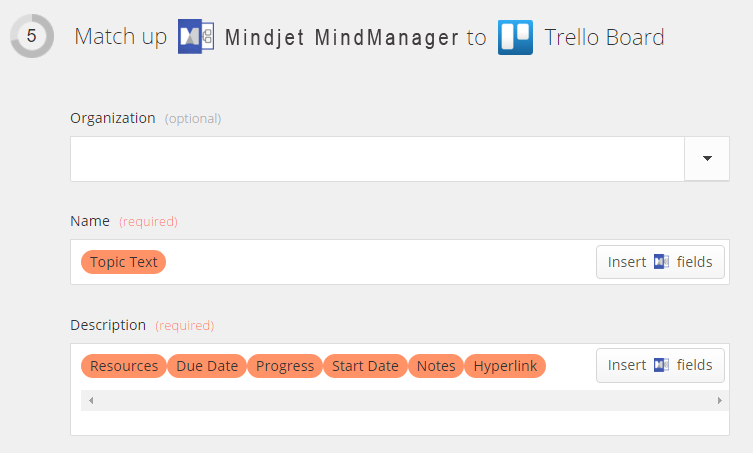
Before you use this
Zap with a topic, ensure that the topic has:
If the topic does not
include the items selected during setup, you will receive a Zapier error.
Read Hint
Do one
of the following:
On the Tasks
tab, in the Send Tasks To
group, click the Zapier
drop down then click Send
Selected Topics to Zapier. |
Or |
On the Advanced
tab, in the Zapier
group, click the Zapier
drop down then click Send
Selected Topics to Zapier. |
If your zap is successful, you will receive a confirmation message, and
the Zapier icon  is displayed
on the topic. Hovering over the topic will open a tool tip indicating
the Zapier status, and the topic will also be listed Under Sent
to Zapier in the Elements tab on the Map Index.
is displayed
on the topic. Hovering over the topic will open a tool tip indicating
the Zapier status, and the topic will also be listed Under Sent
to Zapier in the Elements tab on the Map Index.
Read Hint
If your Zap is not successful, you will receive
an error message and your topic will display the Zapier error icon  . Hovering over the topic will display an
error tool tip; the topic will also be listed Under Sent
to Zapier in the Elements tab on the Map Index with an error icon.
. Hovering over the topic will display an
error tool tip; the topic will also be listed Under Sent
to Zapier in the Elements tab on the Map Index with an error icon.
Note: Data sent
using Zapier is not synced to the map. If you make changes on your
map, it will not be updated in the Action app. You must re-send the Zap
to update the information.
Re-Zapping Topics
If you have already Zapped a topic, and you choose to Zap it again,
you will receive an message warning you that re-Zapping may create duplicate
information. You can choose to send anyway, or cancel.
Show/hide Zapier Icons
After you send a topic to Zapier, the topic displays a Zapier icon.
You can turn this feature on or off by clicking Show
Zapier Icons in Map in the Zapier
drop-down menu.
Do one
of the following:
On the Tasks
tab, in the Send Tasks To
group, click the Zapier
drop down then click Show
Zapier Icons in Map. |
Or |
On the Advanced
tab, in the Zapier
group, click the Zapier
drop down then click Show
Zapier Icons in Map. |
If you uncheck this option, the Zapier icon will not be displayed on
topics that have been sent to Zapier. However, Zapped topics will
be listed in the Map Index's Elements tab.
 Read Note
Zapier History
Select View Zapier History from
the Zapier drop-down to open the
Map Index's Elements tab to see a list of all topics that have been sent
to Zapier.
To remove Zapier History from a selected topic
Select the topic(s) where you want to remove
Zapier history.
Right click the Zapier icon in the topic
and in the context menu, click Remove
Zapier History from This Topic.
The Zapier icon is removed from the selected topic(s) and those topics
are deleted from the Elements tab in the Map Index.
To remove Zapier History from the entire map
Do one
of the following:
Right click the topic
and in the context menu, click Remove
Zapier History from Map. |
Or |
On the Tasks
tab, in the Send Tasks To
group, click the Zapier
drop down then click Remove
Zapier History from Map.
|
Or |
On the Advanced
tab, in the Zapier
group, click the Zapier
drop down then click Remove
Zapier History from Map.
|
The icon is removed from all topic(s) and all topics are deleted from
the Elements tab in the Map Index.
Read Hint
Sign Out
To sign out of your MindManager account:
In the Zapier drop-down menu, click Sign Out. Once you are signed
out, you cannot send Zaps.
To sign into your MindManager account:
In the Zapier drop-down menu, click Set Up Account. In the Account
setup window, select Sign In,
and enter your credentials (username and password.).
